
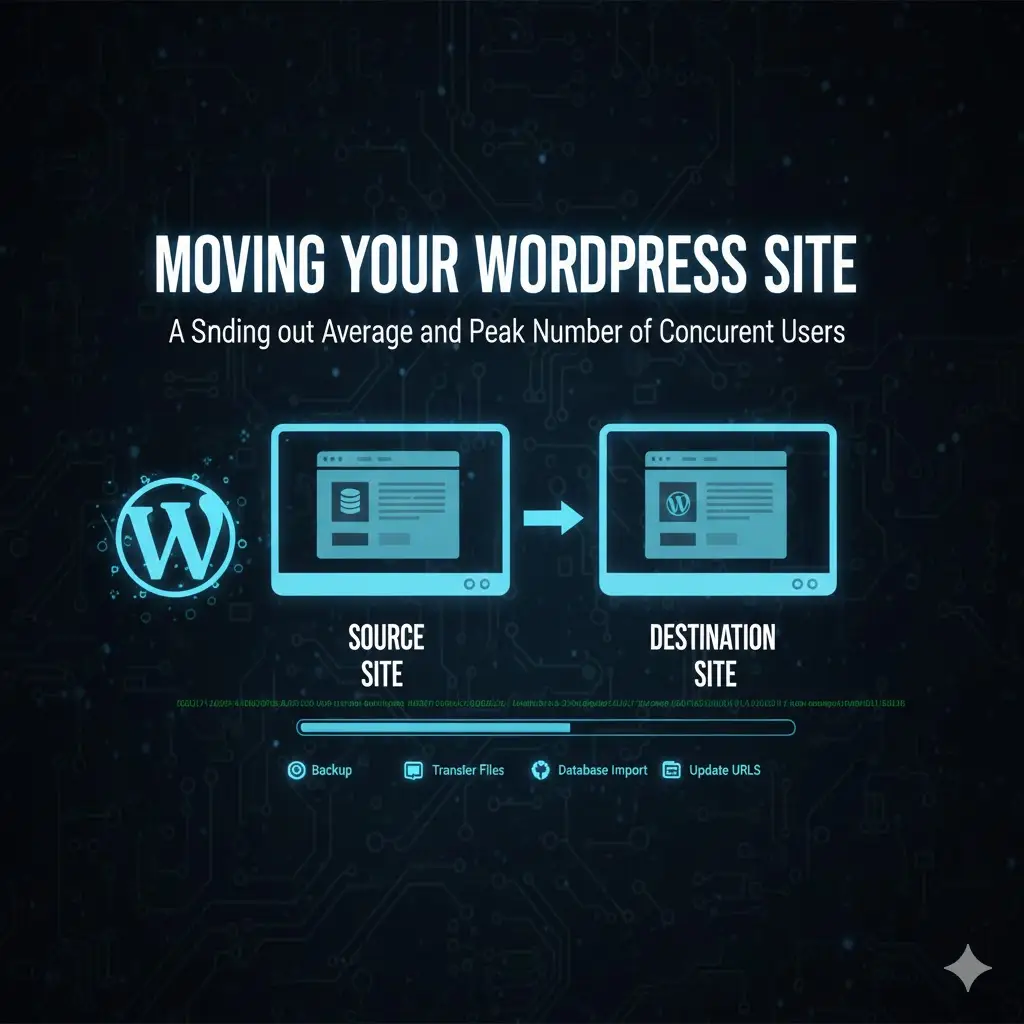
Moving Your WordPress Site: A Step-by-Step Guide for Developers
Moving a WordPress site from your main domain to a subdirectory (like from site.com to site.com/mirror/) is a common task for developers working on staging environments or site redesigns. However, simply copying files isn’t enough—you need to update your database to reflect the new URL structure. Here’s your comprehensive guide to making this transition smoothly.
Why Simple File Copying Isn’t Enough
When you clone your WordPress site files to a subdirectory, your database still contains hundreds (or thousands) of absolute URLs pointing to the original location. These URLs exist in:
- Post content and excerpts
- Image links and media library references
- WooCommerce product data
- Theme and plugin settings
- Serialized data where string lengths are critical
Without updating these references, your cloned site will have broken links, missing images, and functionality issues.
⚠️ CRITICAL FIRST STEP: BACKUP YOUR DATABASE
Always create a full database backup before attempting any URL replacements. Use your hosting control panel, phpMyAdmin, or a backup plugin.
The Safest Method: InterconnectIT Search and Replace Tool
Before you try manual SQL queries, I highly recommend using the free tool from:
https://interconnectit.com/search-and-replace-for-wordpress-databases/
This PHP script is specifically designed for WordPress databases and handles:
- Serialized data correctly (where string length matters)
- Multiple table searches
- Safe, reversible operations
- Preview mode to see changes before committing
How to Use It:
- Download
searchreplacedb2.phpfrom their site - Upload it to your
site.com/mirror/directory - Run it via your browser
- Search for
https://site.comand replace withhttps://site.com/mirror - The tool handles all serialization issues automatically
When the Tool Fails: Manual SQL Approach
Sometimes server restrictions, large databases, or specific configurations prevent using the PHP tool. In these cases, you’ll need to run SQL queries directly. Always backup your database first!
Essential Precaution: Create Backups
-- Create table backups before making any changes
CREATE TABLE wp_options_backup AS SELECT * FROM wp_options;
CREATE TABLE wp_posts_backup AS SELECT * FROM wp_posts;
CREATE TABLE wp_postmeta_backup AS SELECT * FROM wp_postmeta;
The Complete SQL Script for Site Migration
Here’s the complete SQL
/ to /mirror/:
-- 1. Update WordPress site and home URLs (CORE SETTINGS)
UPDATE wp_options
SET option_value = REPLACE(option_value, 'https://site.com', 'https://site.com/mirror')
WHERE option_name IN ('siteurl', 'home');

-- 2. Update post content URLs (POSTS AND PAGES)
UPDATE wp_posts
SET post_content = REPLACE(post_content, 'https://site.com', 'https://site.com/mirror');

-- 3. Update post GUIDs (IMPORTANT FOR RSS FEEDS AND IMPORTS)
UPDATE wp_posts
SET guid = REPLACE(guid, 'https://site.com', 'https://site.com/mirror');

-- 4. Update postmeta (WOOCOMMERCE AND OTHER PLUGINS)
UPDATE wp_postmeta
SET meta_value = REPLACE(meta_value, 'https://site.com', 'https://site.com/mirror')
WHERE meta_value LIKE '%site.com%';

-- 5. Update WooCommerce specific URLs (PRODUCT IMAGES, FILES)
UPDATE wp_postmeta
SET meta_value = REPLACE(meta_value, 'https://site.com', 'https://site.com/mirror')
WHERE meta_key IN ('_product_image_gallery', '_thumbnail_id', '_file_paths');

-- 6. Update termmeta (CATEGORY AND TAG IMAGES)
UPDATE wp_termmeta
SET meta_value = REPLACE(meta_value, 'https://site.com', 'https://site.com/mirror')
WHERE meta_value LIKE '%site.com%';

-- 7. Update widget content (SIDEBARS AND FOOTERS)
UPDATE wp_options
SET option_value = REPLACE(option_value, 'https://site.com', 'https://site.com/mirror')
WHERE option_name LIKE 'widget_%';

-- 8. Clear cache-related options (PREVENT CACHED OLD URLS)
DELETE FROM wp_options WHERE option_name LIKE '%_transient_%';
DELETE FROM wp_options WHERE option_name LIKE '%_cache_%';
⚠️ IMPORTANT: TABLE PREFIX
If your WordPress table prefix is not wp_, replace all instances with your actual prefix (e.g., wp123_).
Critical Warning About Serialized Data
This is the most important section! WordPress stores many settings as serialized PHP arrays. In serialized data, string lengths are included in the format. For example:
// Original serialized data
'a:1:{s:4:"link";s:19:"https://site.com";}'

// Notice: s:19 means 19 characters in the string
If you simply replace https://site.com (19 characters) with https://site.com/mirror (28 characters) without updating the length indicator, you’ll break the serialization.
The InterconnectIT tool handles this automatically. For manual SQL, you need special handling:
-- Special handling for serialized data (use cautiously)
UPDATE wp_options
SET option_value = REPLACE(option_value, 's:19:"https://site.com"', 's:28:"https://site.com/mirror"')
WHERE option_value LIKE '%s:19:"https://site.com"%';
You’ll need to find all the different string lengths in your database and create specific queries for each. This is why the PHP tool is generally safer.
Post-Migration Checklist
After running your SQL queries, complete these steps:
- Update permalinks: Go to Settings → Permalinks and click “Save Changes”
- Clear all caches:
- WooCommerce → Status → Tools → “Clear transients”
- Clear any caching plugins (W3TC, WP Super Cache, etc.)
- Clear CDN cache if applicable
- Regenerate thumbnails: Use “Regenerate Thumbnails” plugin if images appear broken
- Test WooCommerce endpoints:
- Visit
/mirror/cart/ - Visit
/mirror/checkout/ - Visit
/mirror/my-account/
- Visit
- Update .htaccess: If you have custom rewrite rules, update paths
- Search for mixed content: Use browser DevTools to find any remaining
http://references
WordPress CLI Alternative (For Developers)
If you have SSH access to your server, WP-CLI is the most efficient method:
# Dry run first to see what will change
wp search-replace 'https://site.com' 'https://site.com/mirror' --all-tables --dry-run

# Actual replacement
wp search-replace 'https://site.com' 'https://site.com/mirror' --all-tables

# Also check for URL-encoded versions
wp search-replace 'https%3A%2F%2Fsite.com' 'https%3A%2F%2Fsite.com%2Fmirror' --all-tables
Troubleshooting Common Issues
Problem: “Too many redirects” error
Solution: Check your .htaccess file and WordPress Address in Settings → General
Problem: WooCommerce pages showing 404
Solution: Go to WooCommerce → Status → Tools → “Create default WooCommerce pages”
Problem: Images still loading from old URL
Solution: Some themes store URLs in custom tables. Check:
- Your theme’s options table
- Any slider or gallery plugins
- Custom post type meta data
Problem: Mixed content warnings (HTTP/HTTPS)
Solution: Run additional search and replace for http://site.com to https://site.com/mirror
Final Recommendation
For most users: Use the InterconnectIT tool first. It’s specifically designed for this purpose and handles the complex serialization issues automatically.
For developers with large sites: Use WP-CLI if available on your server.
For edge cases where neither works: Use the manual SQL approach with extreme caution, always with backups, and test thoroughly on a staging environment first.
Remember: The goal isn’t just to make the site work—it’s to make it work without breaking anything else. Take your time, test each step, and you’ll have your cloned site running smoothly in no time.
📝 Need more help?
Leave a comment below with your specific issue, and I’ll do my best to help troubleshoot your WordPress migration challenge.